
Backgrounds
Gradient, solid color, wallpaper image, or transparent. Built-in gradients and macOS-style wallpapers, custom from/to colors, angle, upload, blur, and fit (cover / contain / fill).
CaptureKit Studio
Turn raw screenshots and screen recordings into marketing-ready frames. Add wallpapers, gradients, canvas sizes, padding, shadows, device mockups, separate camera layers, zoom effects, and multi-track trim — then copy, save, or export video. Everything runs locally in your browser.
Open and edit Studio free (watermarked preview). Clean full-resolution export requires Capture Kit Pro.
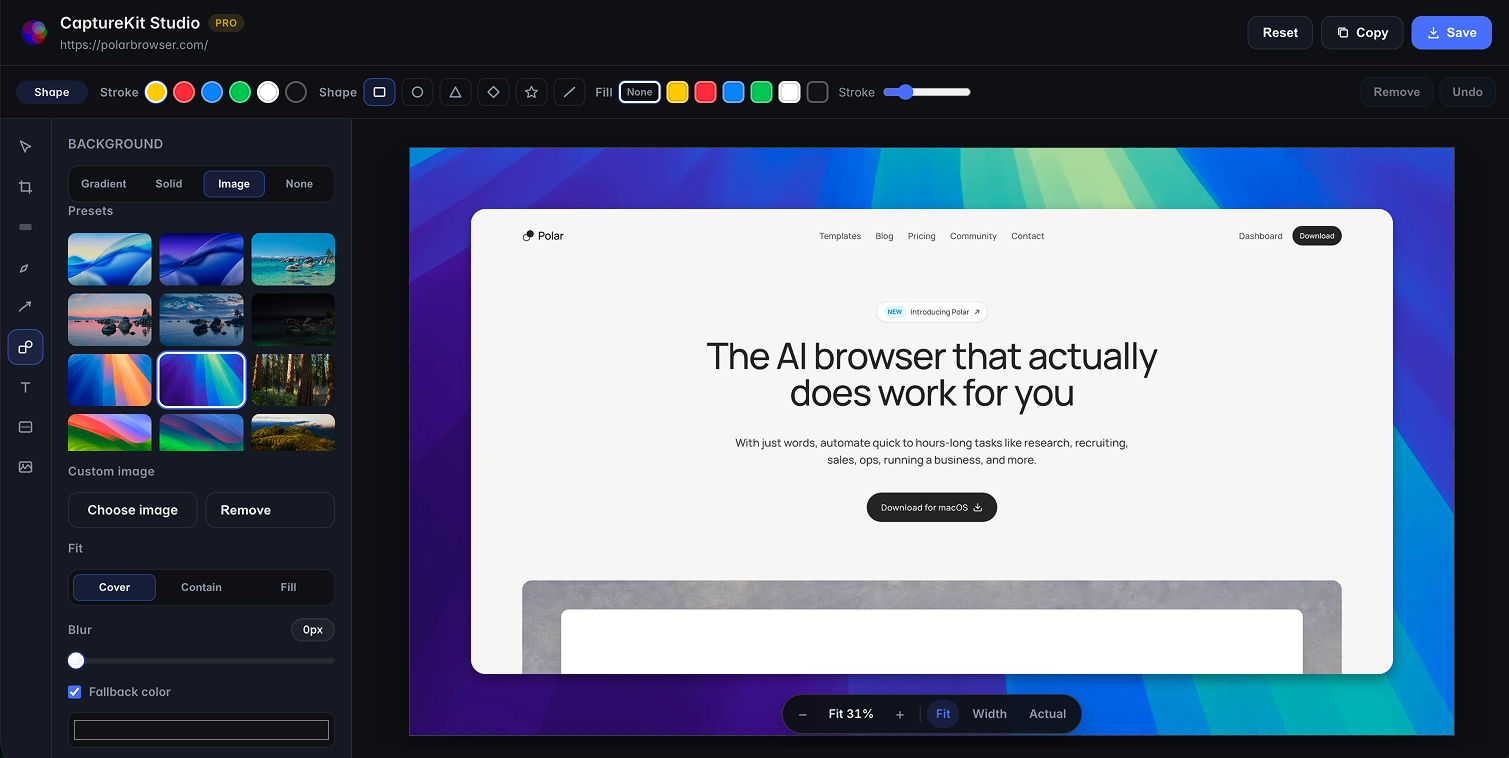
Studio works with screenshots and videos from Capture Kit. Open it after capture, from Library, the popup Studio button, or after-capture settings — no Pro required to open.
Gradient, solid color, wallpaper image, or transparent. Built-in gradients and macOS-style wallpapers, custom from/to colors, angle, upload, blur, and fit (cover / contain / fill).
Auto-fit content, Square, Full HD, Widescreen, Open Graph (1200×630), HD, Portrait, or fully custom width and height.
Padding (0–200px), squircle corner radius, shadow strength (None, Soft, Medium, Strong), and optional device mockup PNG with adjustable screen insets.
When you record with camera, Studio keeps a separate camera track. Move, resize, mirror, and pick rectangle, square, or circle — without re-recording.
Add timed zooms on the timeline. Set focus by clicking the preview or with sliders. Great for product demos and UI walkthroughs.
Trim screen, camera, and audio independently. Play/pause, scrub, time display, and mute while previewing the composed canvas.
Draw, arrows, boxes, text, and blur in Studio. Annotations from screenshot preview can carry over when you open Studio from preview.
Images: copy or save PNG. Videos: WebM, MOV (when supported), or GIF with mixed mic audio. Clean unwatermarked export is Pro; free preview is watermarked.
Take a screenshot or record video (optionally with mic and camera). Free capture tools work the same — no account required to try Studio.
Use Open Studio in screenshot preview, Library → Studio, the popup Studio button, or set Settings → After capture → Open Studio.
Adjust background, size, and frame. For camera recordings, reposition the camera layer and trim on the timeline. Add zooms for demos.
Sign in under Settings → Pro and subscribe via Stripe. Then copy, save, or export video without the preview watermark.
Studio processes media entirely on your device. Screenshots and videos are not uploaded for composition. Pro billing uses Stripe; the extension only sends email / auth tokens and subscription status requests — never captures or page content.
Read the full privacy policy.
Pro is $10 $5/month (or $100 $50/year with
WELCOME50) and includes clean Studio export, High/Max video quality, GIF
export, scheduled capture, and more. Studio preview stays free.